You just unboxed The Ruff — congratulations. Getting it onto your dog and monitoring pain takes less than five minutes. This guide covers every step from first power-on to a fully connected device.
What You’ll Need #
- The Ruff device (charged)
- A computer, tablet, or phone with WiFi
- Your home WiFi network name and password
- A Perfect Paw account (create one here if you haven’t already)
Step 1: Power On The Ruff #
Press and hold the power button on the device until the LED indicator lights up. The Ruff will boot into setup mode and create its own WiFi hotspot called The-Ruff.
Step 2: Connect to The Ruff’s Hotspot #
On your computer or phone, open your WiFi settings and connect to the network named The-Ruff. Once connected, open a web browser and navigate to:
http://ruff.local
Step 3: Enter Your Home WiFi Credentials #
You’ll see the wireless configuration screen. Enter your home WiFi network name (SSID) and password, then click Connect.
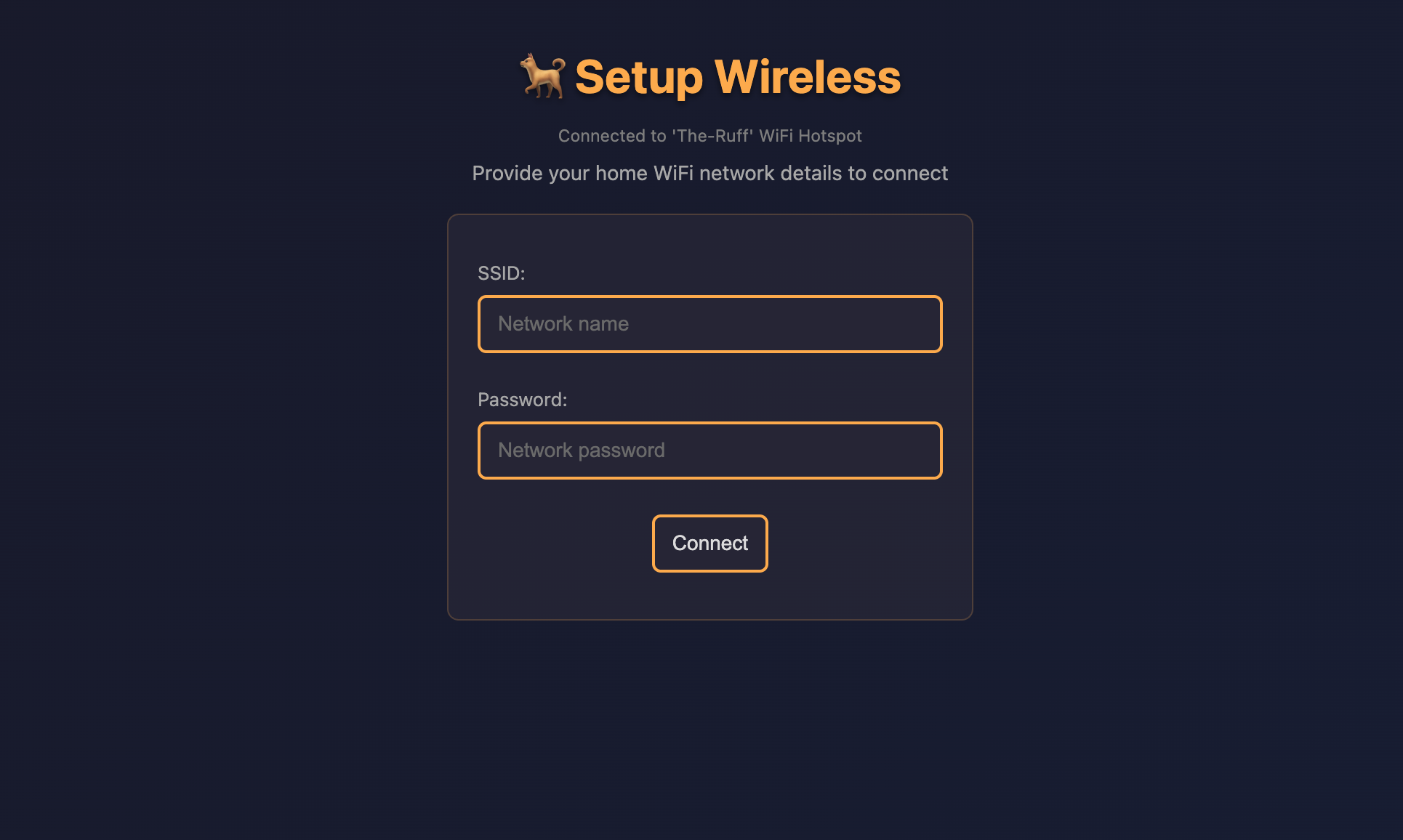
After you click Connect, The Ruff will restart and switch from its own hotspot to your home network. You’ll see a status message with a countdown timer while this happens.
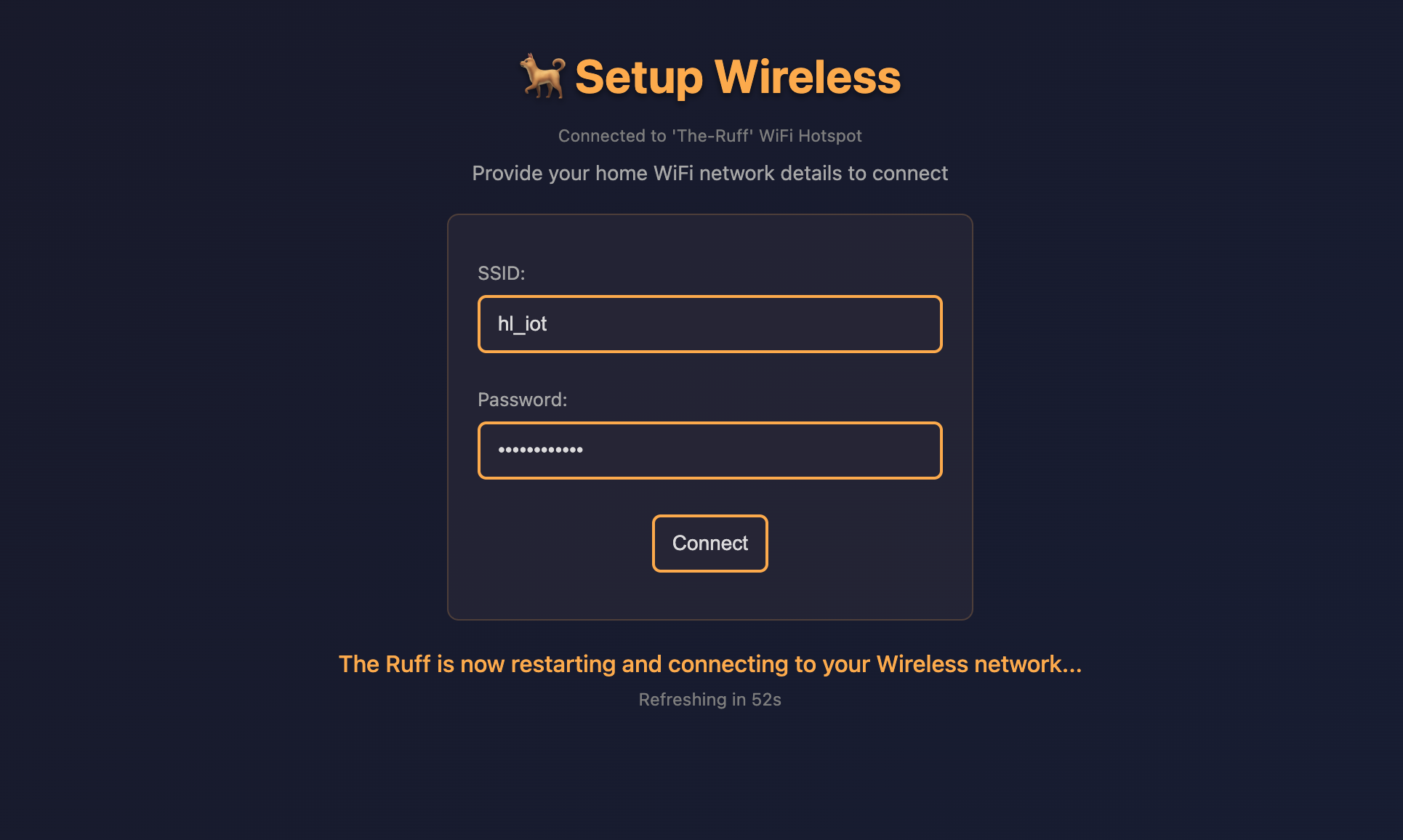
During this 60-second window your computer will automatically reconnect to your home WiFi (since The Ruff’s hotspot shuts down). No action is needed on your part — just wait for the countdown to finish.
Step 4: Log In with Your Perfect Paw ID #
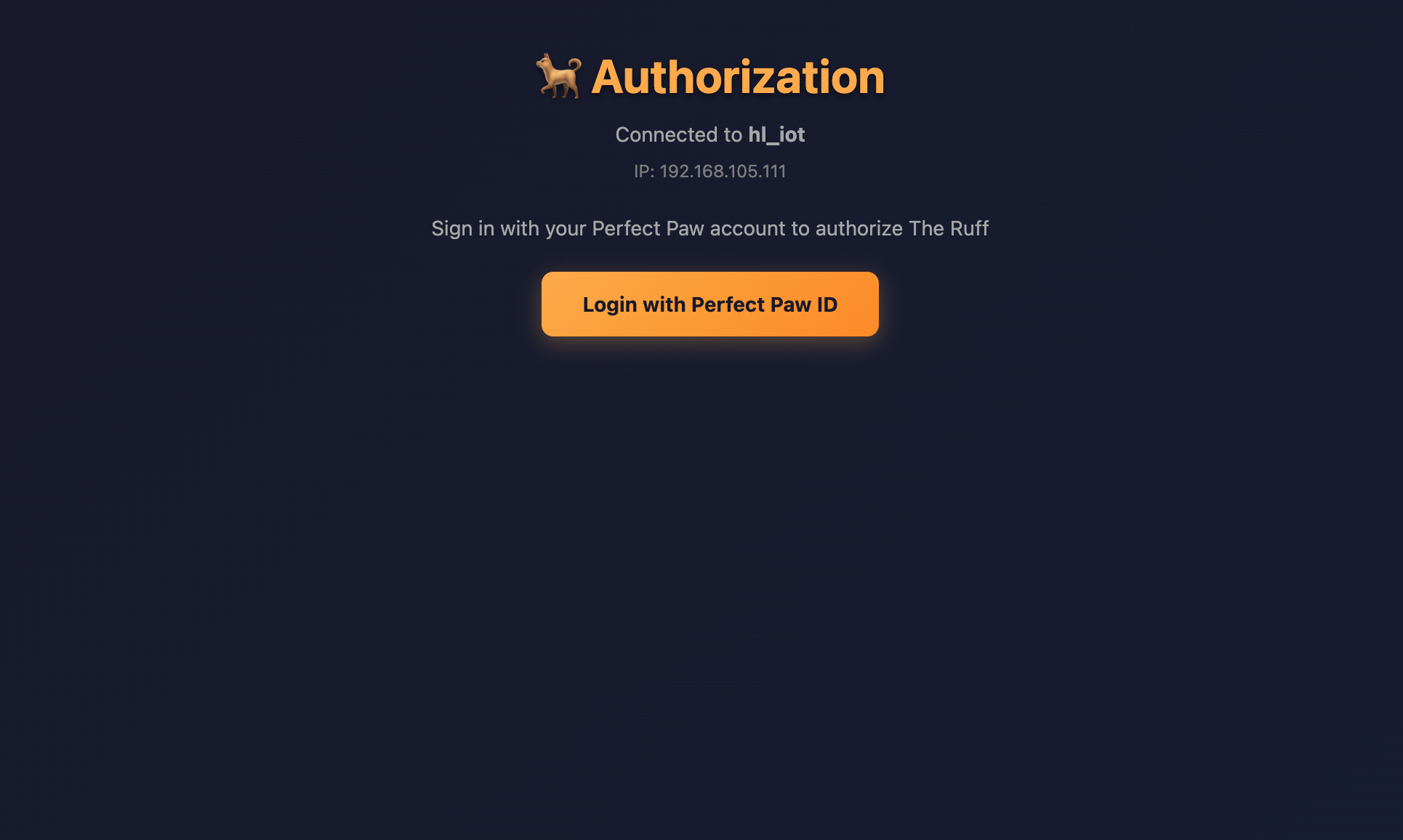
Once the page reloads, The Ruff is now on your home network with internet access. You’ll see the authorization screen. Click Login with Perfect Paw ID and sign in with your existing account credentials.
Step 5: You’re All Set #
After a successful login you’ll see the confirmation screen. The Ruff will perform one final restart to apply your account link, and then it’s ready to go.
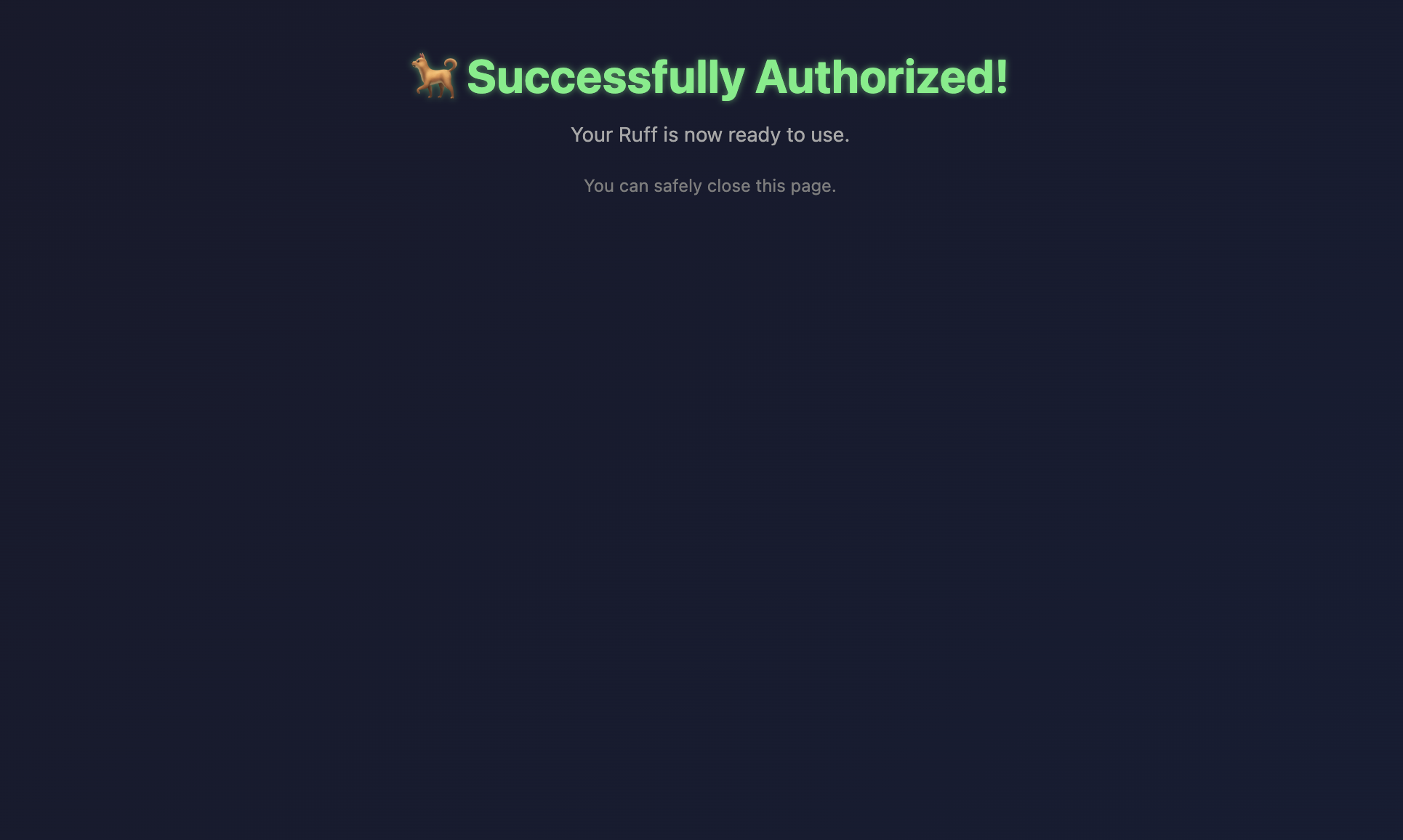
You can safely close the browser tab at this point. From here on, The Ruff operates autonomously — no further interaction with the device’s web interface is needed.
What Happens Next #
Once setup is complete, The Ruff begins collecting sensor data and generating pain scores automatically. You can monitor everything from the Perfect Paw app or web dashboard:
- Real-time pain scores updated every 90 seconds
- Pain Timeline showing trends over the past 30 days
- Event correlation linking pain spikes to walks, meals, and medications
The device can also be managed remotely through the Perfect Paw app — including updating WiFi credentials if you change your home network.
Troubleshooting #
| Issue | Solution |
|---|---|
| Can’t find “The-Ruff” WiFi network | Make sure the device is powered on and in setup mode. Hold the power button for 5 seconds to restart. |
ruff.local doesn’t load | Ensure you are connected to the same network as The Ruff and try refreshing the page. |
| Page doesn’t reload after WiFi setup | Manually navigate to http://ruff.local after reconnecting to your home WiFi. |
| Login fails | Verify your Perfect Paw ID credentials at perfectpaw.com. |
Need help? Contact our support team at support@perfectpaw.com or visit the Help Center.